
Features
Here's an overview of current and upcoming features of Pictshare Book:
| Feature | Status | Notes |
|---|---|---|
| Shape Stickers | ✅ | Circles and Rectangles |
| Image Upload | ✅ | Supports all common image formats. Upload up to 10 images at a time. |
| Text | ✅ | Supports multiline text |
| Drawing | ✅ | There is no eraser function, but you can delete lines individually |
| Multiplayer | ✅ | The permission system is missing global (canvas level) permissions. |
| Resizing | ✅ | Look at the details for a list of shortcuts |
| Rotation | 🚧 | Work in progress. |
Walkthrough
The following is a more detailed list of features in order of how you would typically use them:
Books
A book in Picshare Book is a single infinite canvas that you can collaborate on with others. You can create multiple books for different events, trips, or projects.
Creating Books
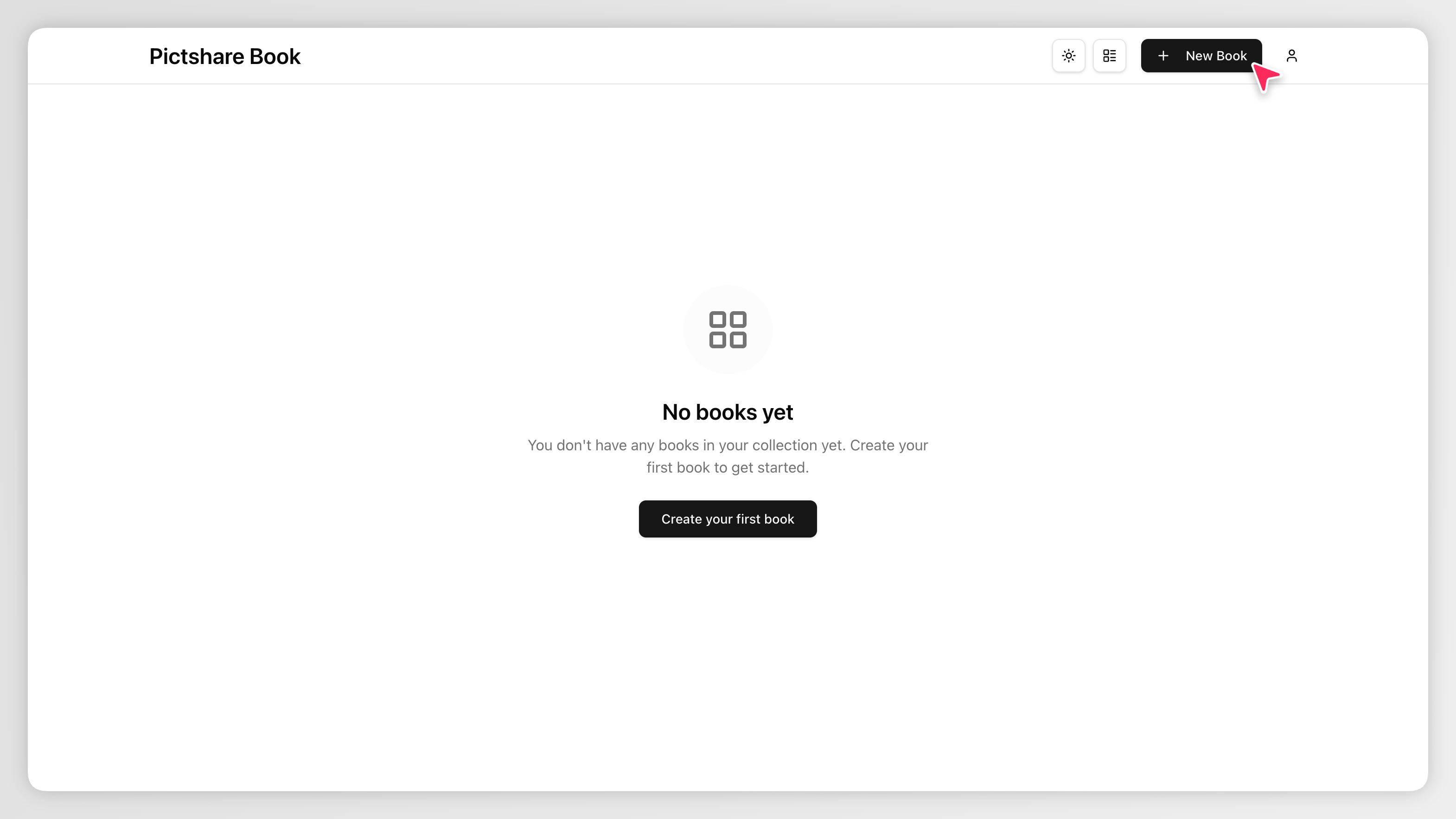
You can create a new book by clicking the "New Book" button in the top right corner of the screen on the homepage.
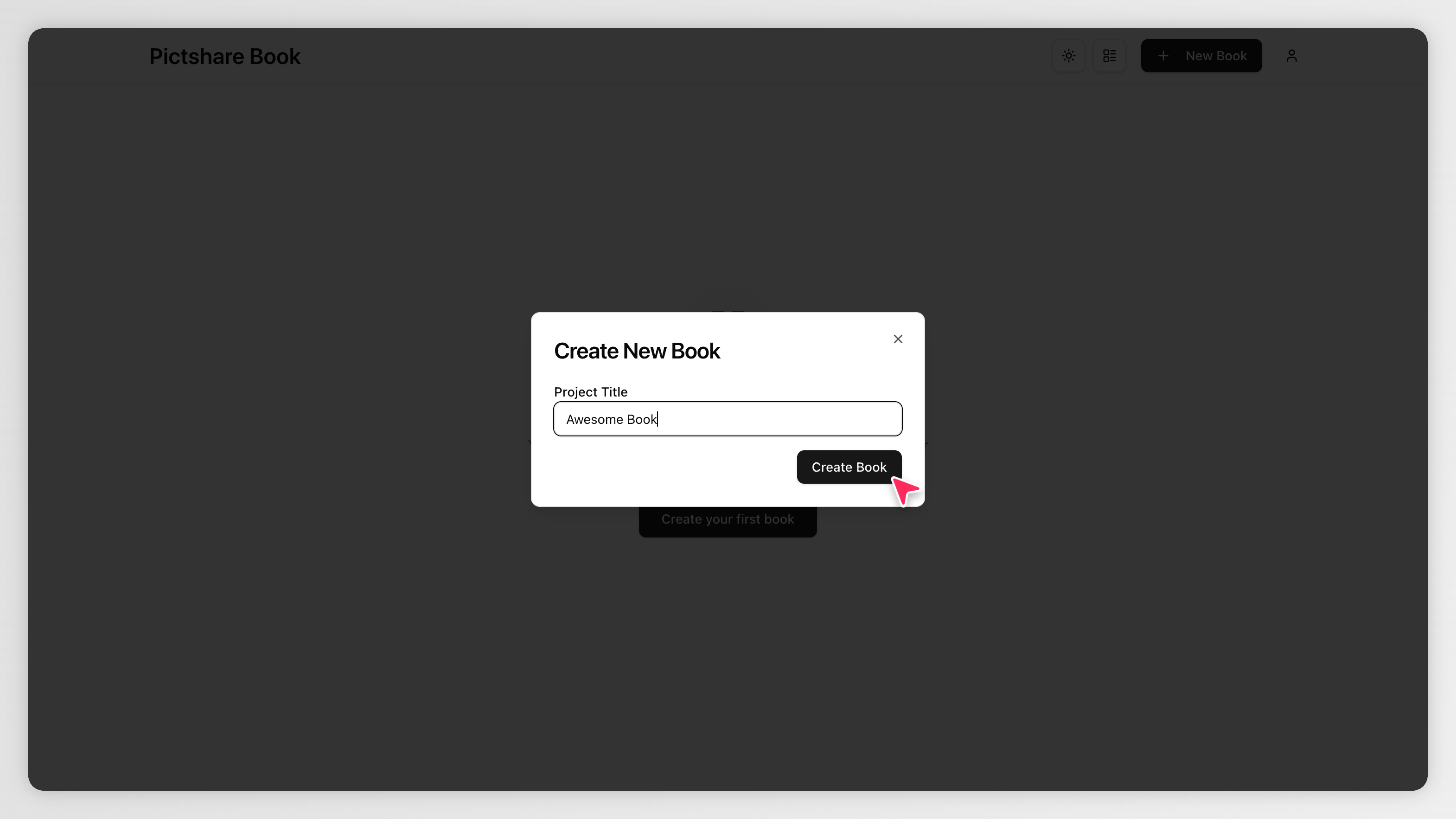
This will open a dialog where you can choose a name for your book. Once you're done you can click "Create Book" to create your new book and it will appear in the list of books.
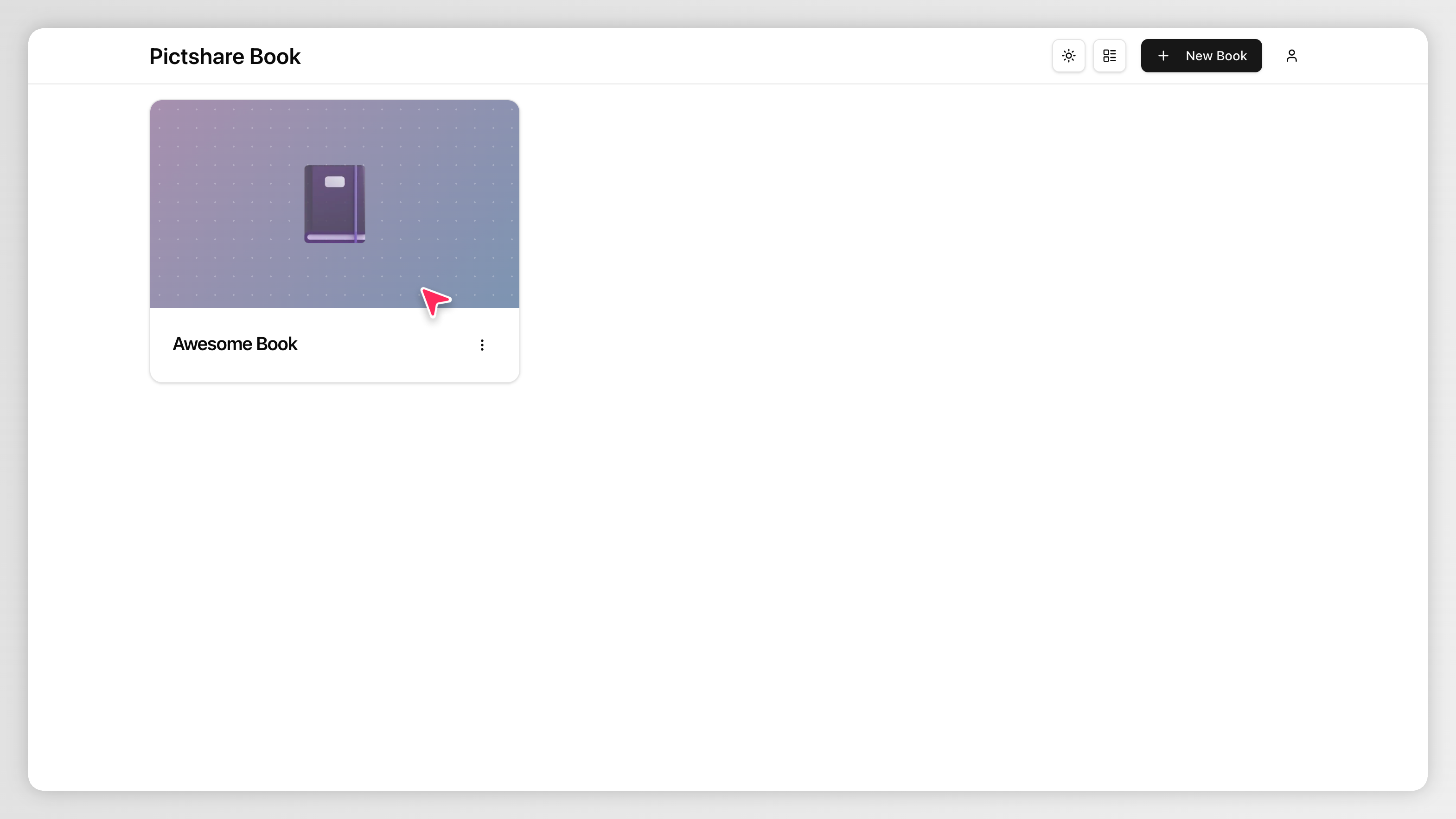
Click on the the book to see its canvas.
Deleting Books
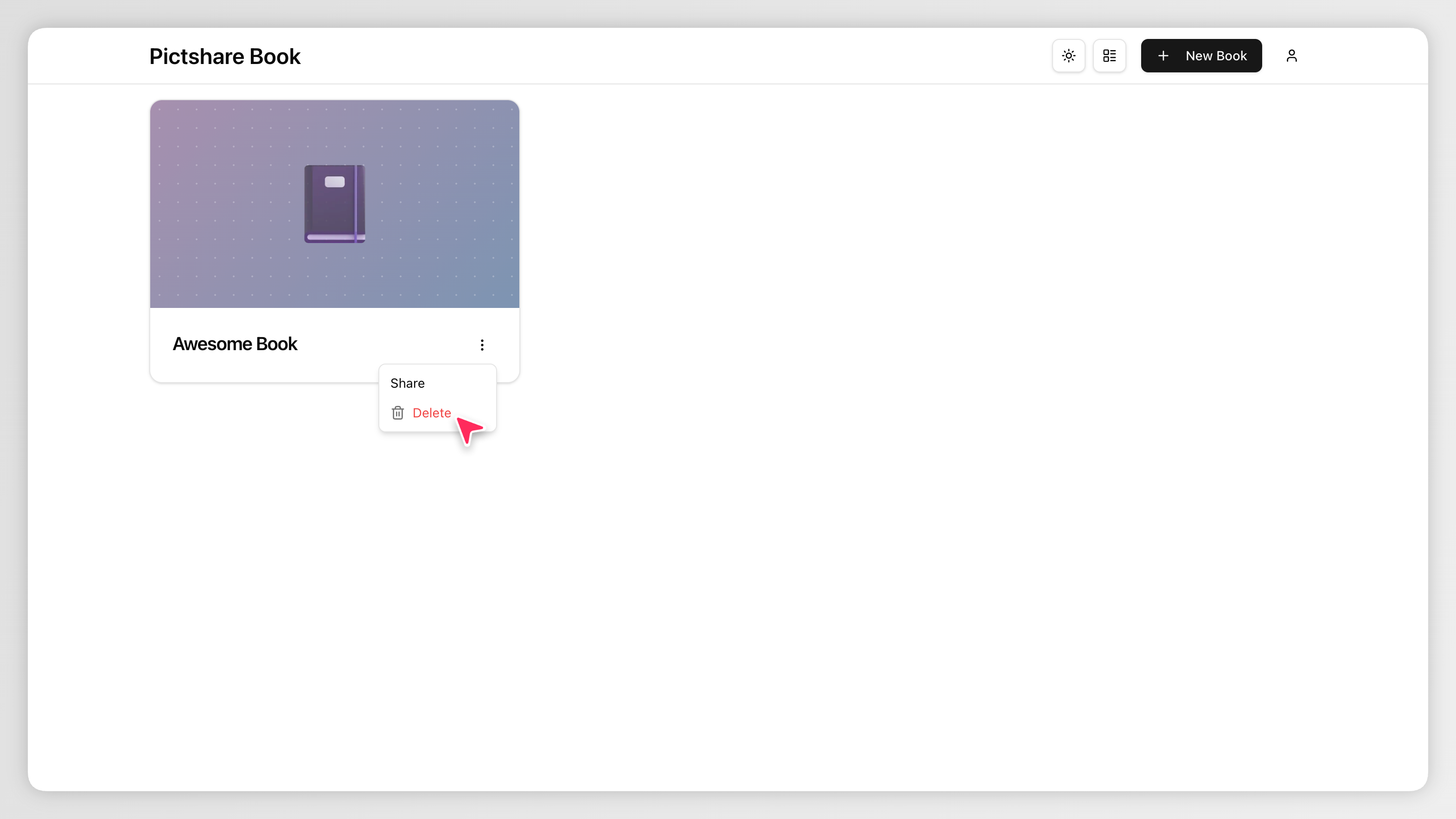
You can delete a book by clicking the three dots on the book card and then on Delete. This will open a dialog where you can confirm the deletion of your book. Be careful, this action is irreversible and will also delete all of the images that you uploaded to that book.
Canvas Elements
The canvas is where you create your picturebook. You can add images, shapes, text, and drawings to your canvas, and resize them freely.
Shape Stickers
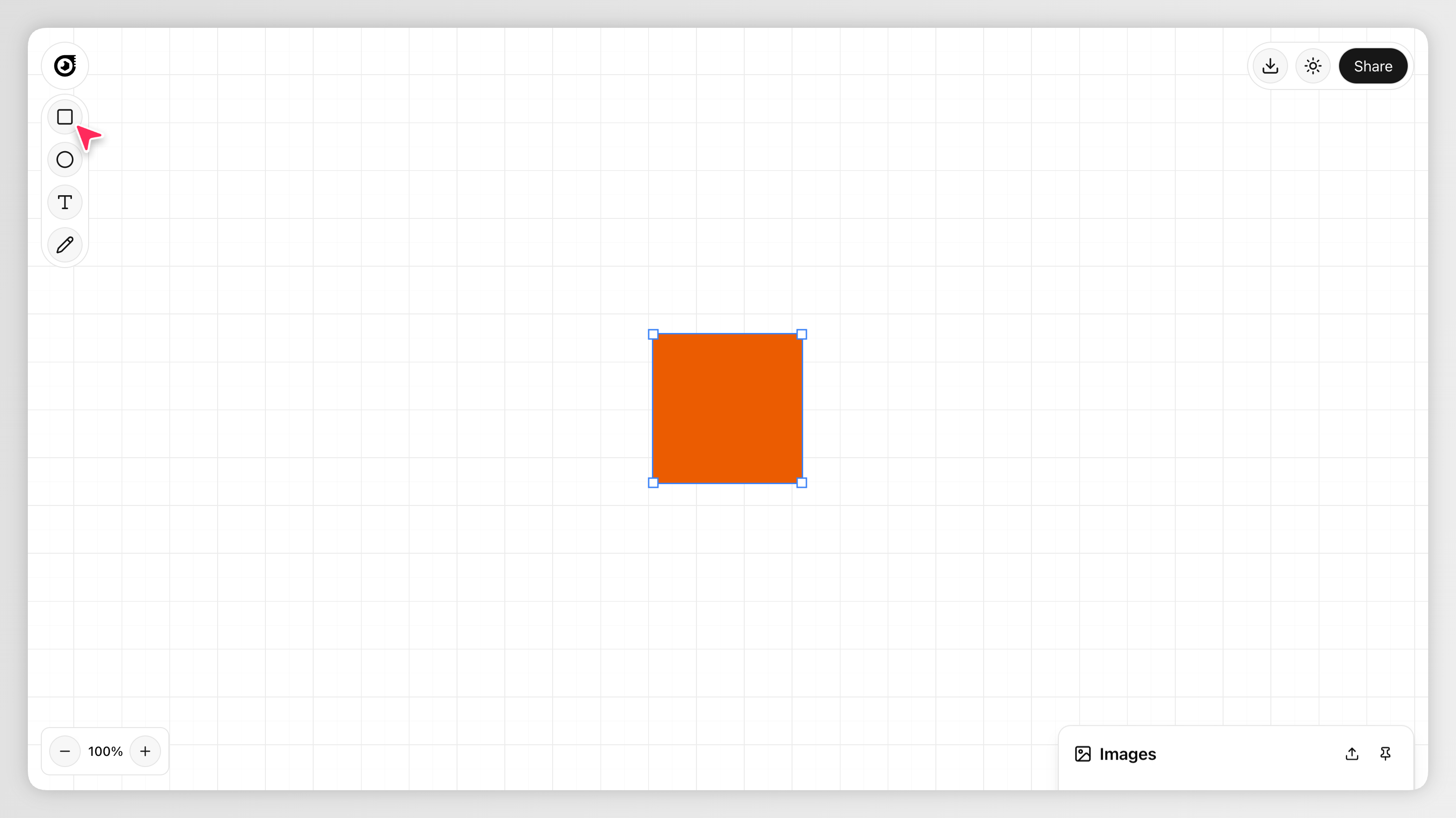
By clicking the shape buttons on the left toolbar, you can add shapes to your canvas. Adding a shape will select it by default.
Image Upload
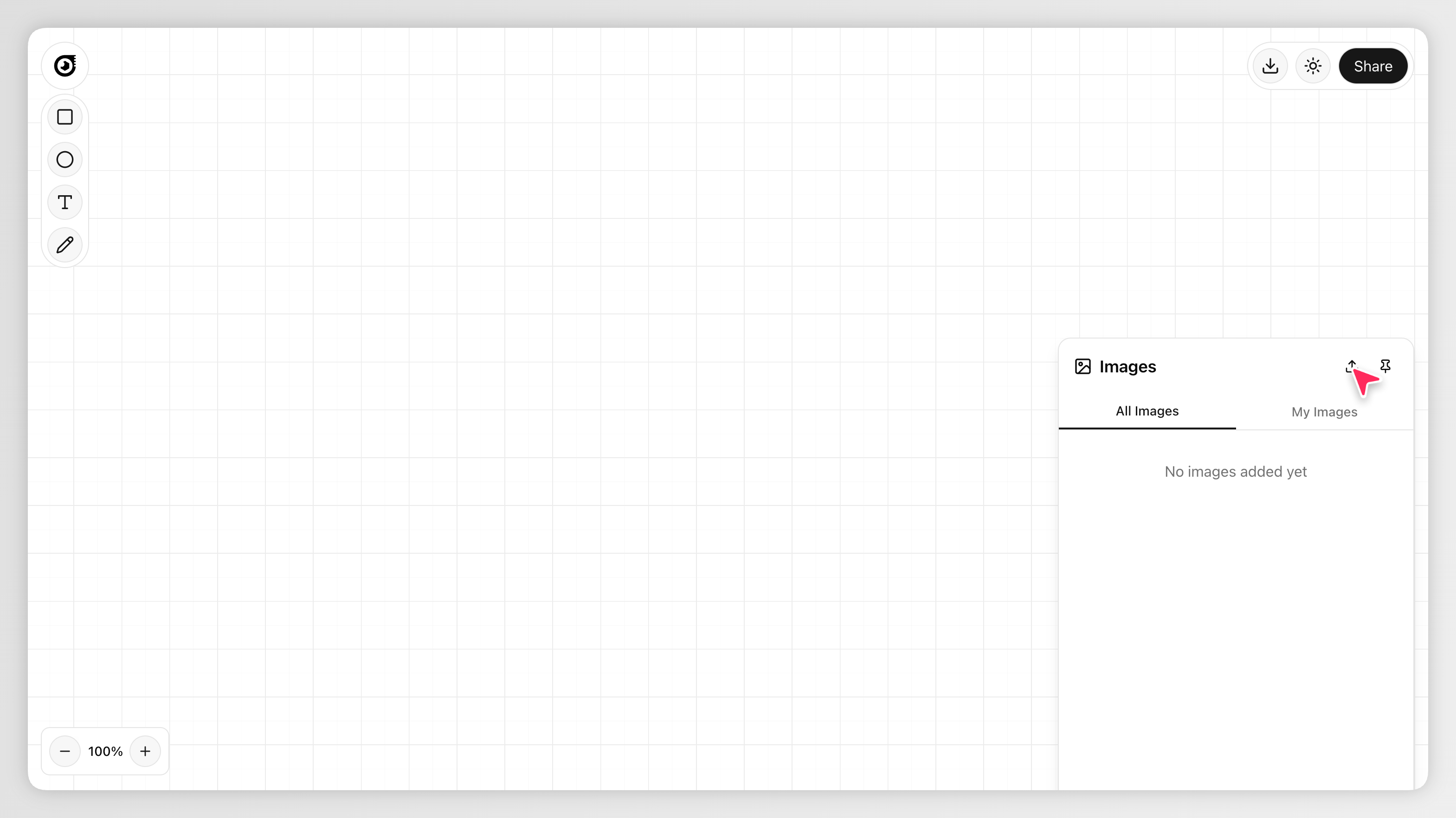
By hovering in the bottom right corner of the canvas, the image drawer will slide up. Clicking the image upload button will open a file picker dialog, allowing you to select an image from your device. The image will be added to the drawer. You can also pin the drawer to make it easier to add images to the canvas while you're planning your layout.
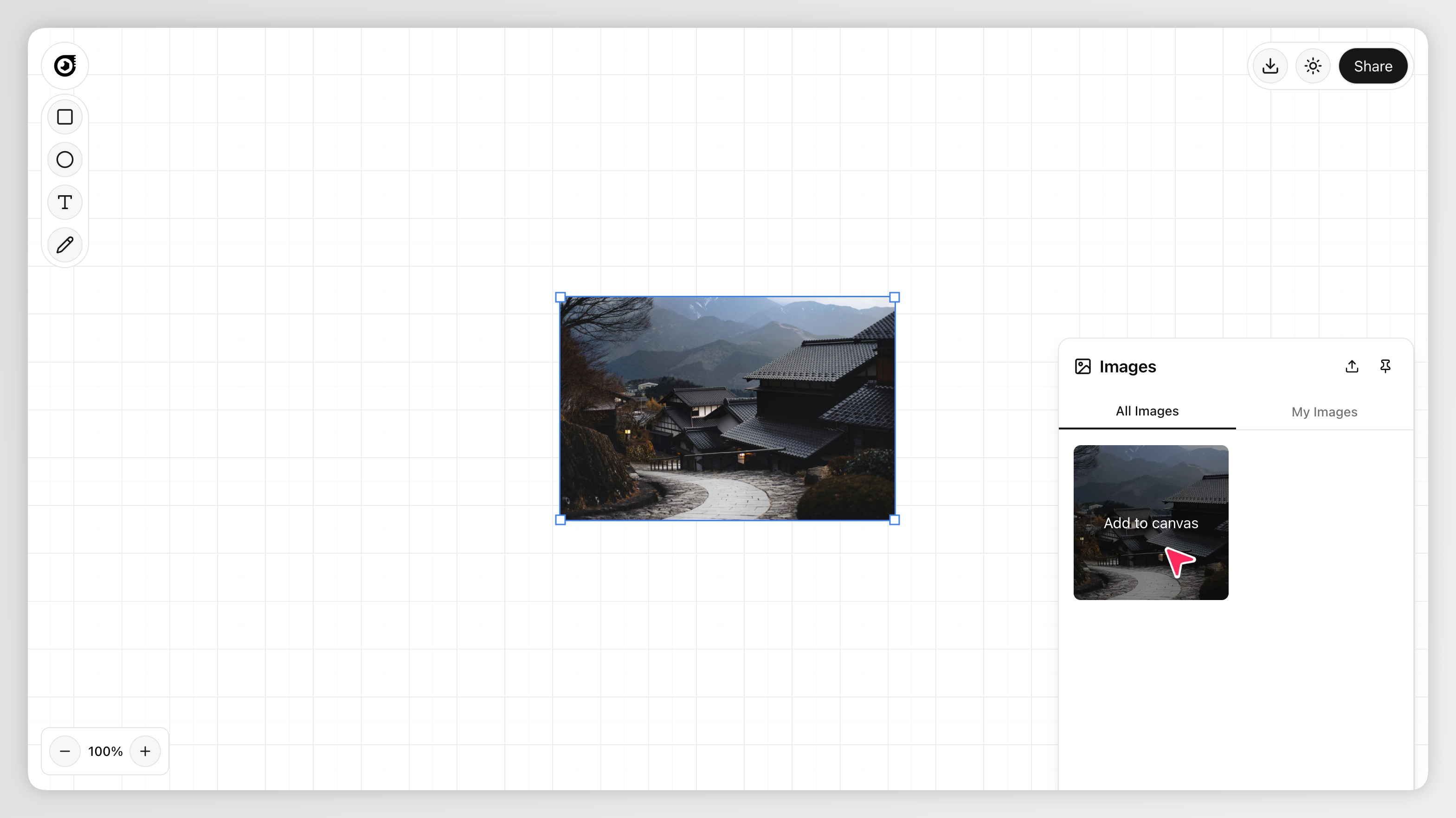
Clicking an image in the drawer will add it to the canvas and select it. The image drawer will show everyones images by default, but you can select the My Images tab to only see the images you uploaded.
Text
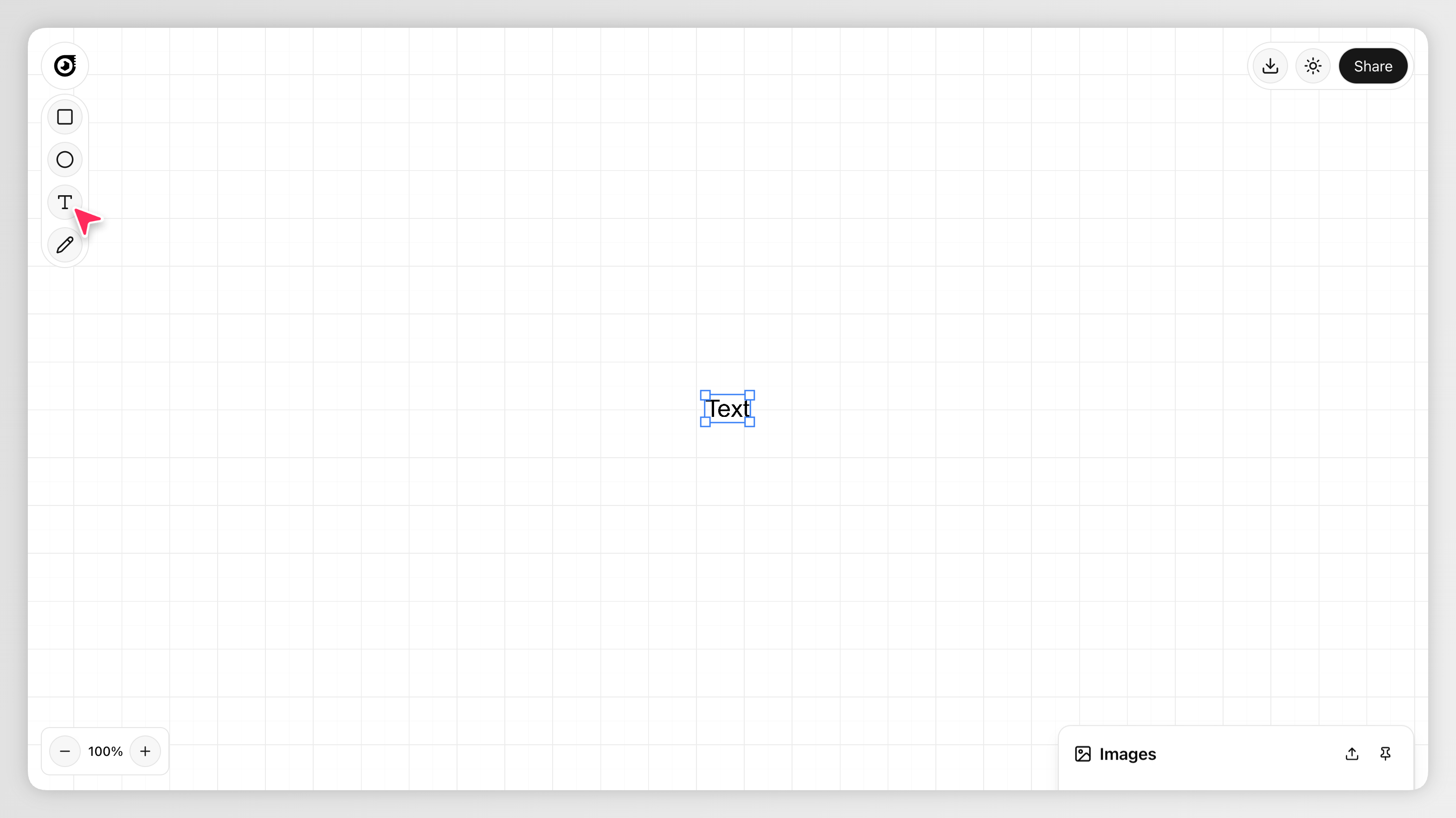
By clicking the text button on the left toolbar, you can add text to your canvas. Adding text will select it by default. You can double click a selected text element to edit it. Multiline text is also supported.
Drawing
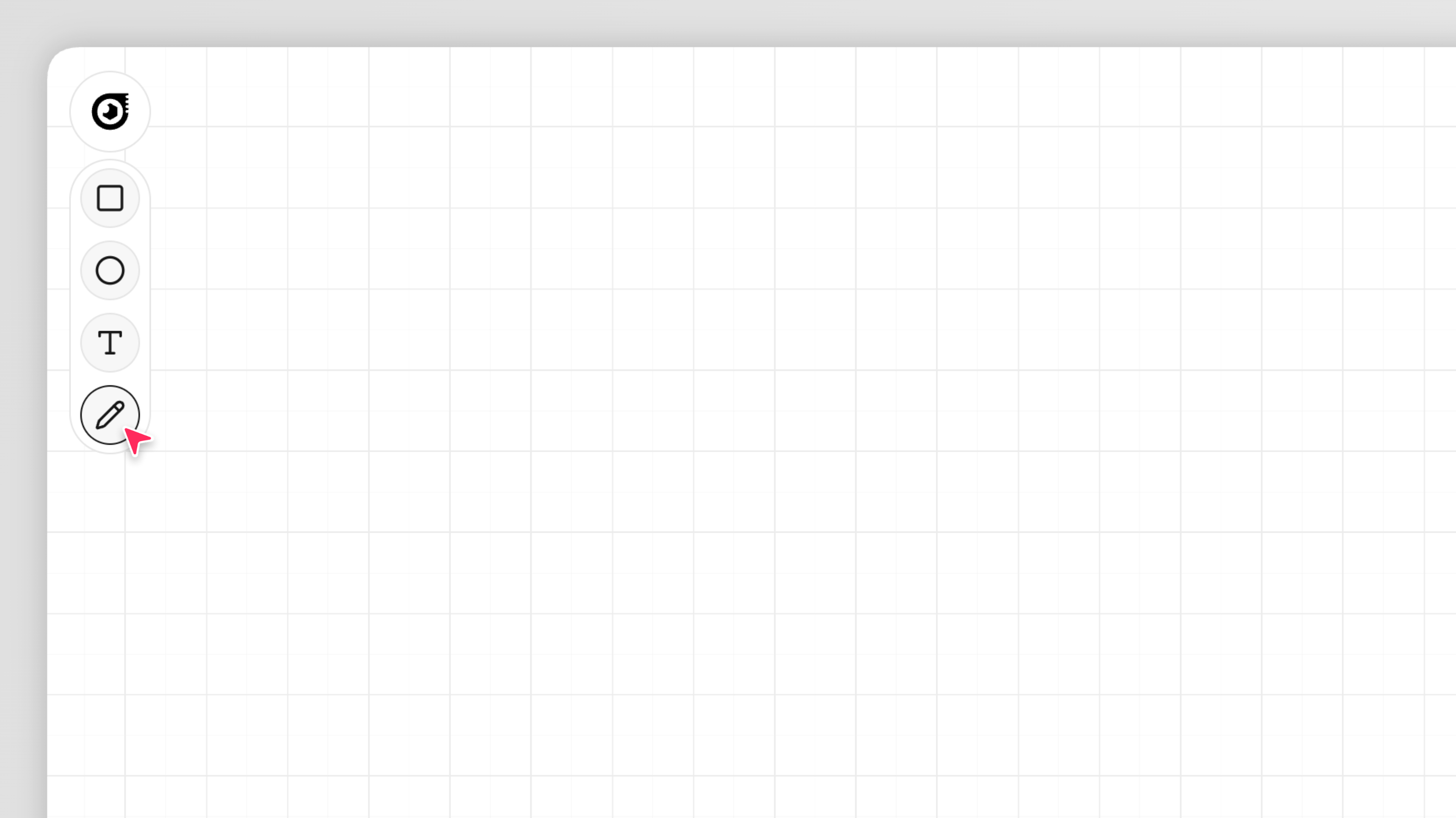
By clicking the drawing button on the left toolbar, you can start drawing on your canvas. The drawing tool will be highlighted to show that it is active. You can now draw on the canvas by clicking and dragging the mouse. The drawing tool will stay active until you deselect it by clicking the drawing button again.
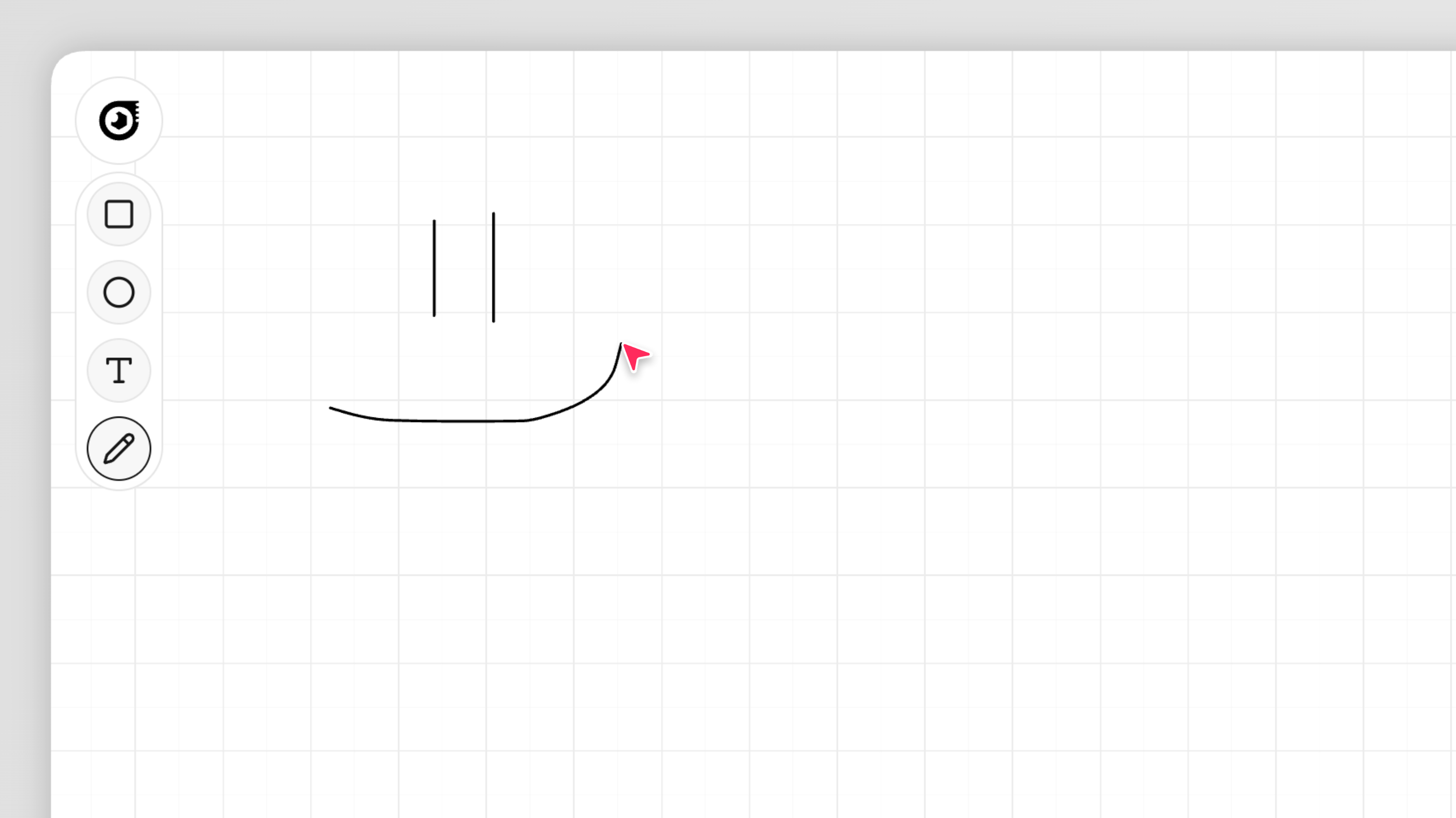
Each individual line will be selectable by clicking on it. This way you can stretch or delete lines you drew.
Canvas Functions
Multiplayer Functionality
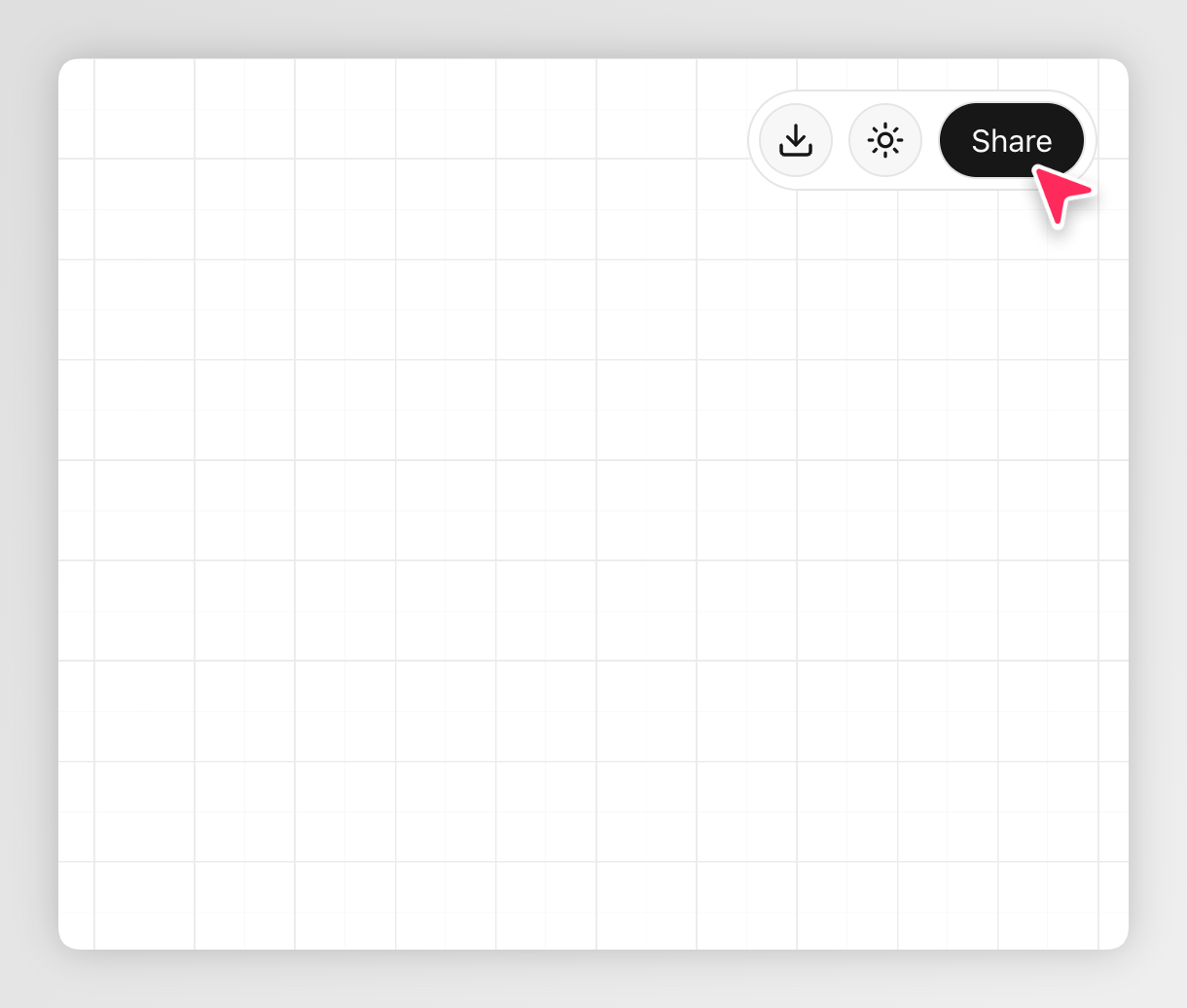
You can invite friends to join your canvas by clicking the Share button in the top right corner.
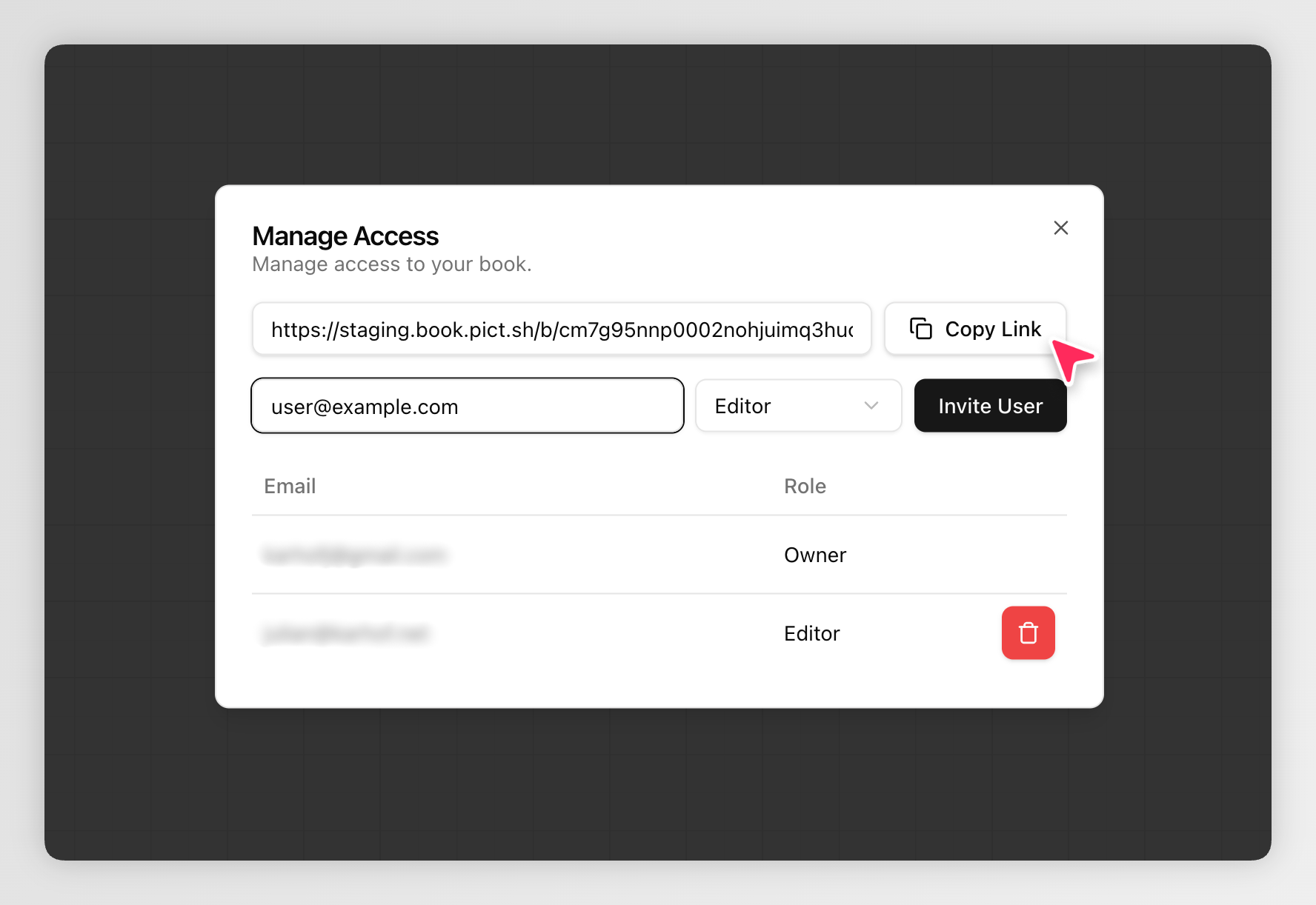
Clicking the share button will open a dialog where you can enter your friend's email address, set a role and invite them to your canvas. You can share a link to the canvas with them by clicking the Copy Link button. This will copy the link to your clipboard.
There are currently two roles available: Viewer and Editor.
- Viewer: Can only view the canvas. (Currently anyone can view any canvas if they have the link, so this role doesn't do anything at the moment)
- Editor: Can view and edit the canvas.
NOTE
Viewers can currently still move elements on the canvas, but the changes will not be saved and won't be reflected on other users' canvases.
You can remove users from your canvas by clicking the trash icon next to their email in the table.
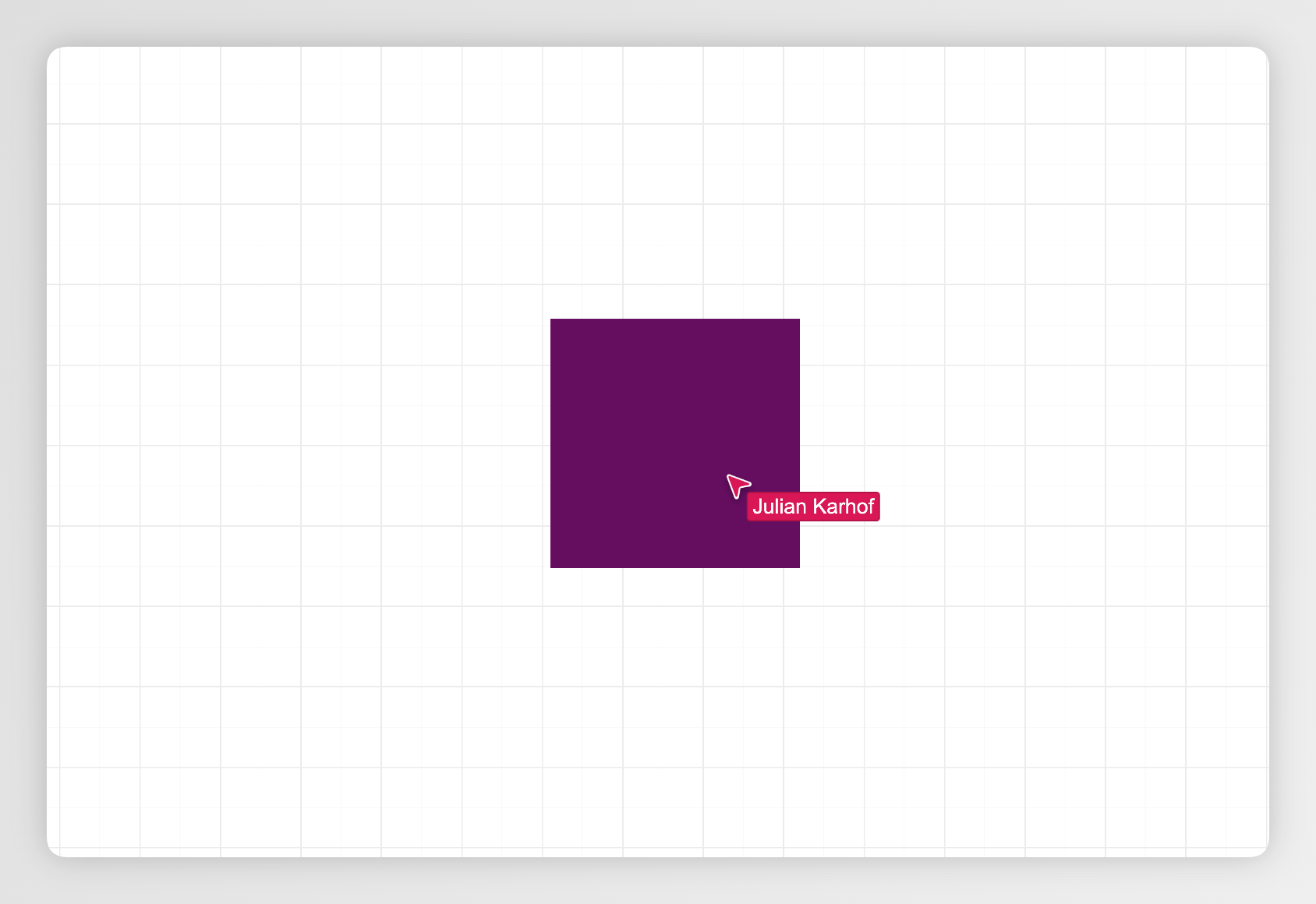
When a friend joins your canvas, they will appear as a cursor on the canvas. You can see their name next to their cursor. Anything they do will be reflected in real-time on your canvas. To edit a friend's role you will need to remove them and re-add them with the desired role.
Resizing
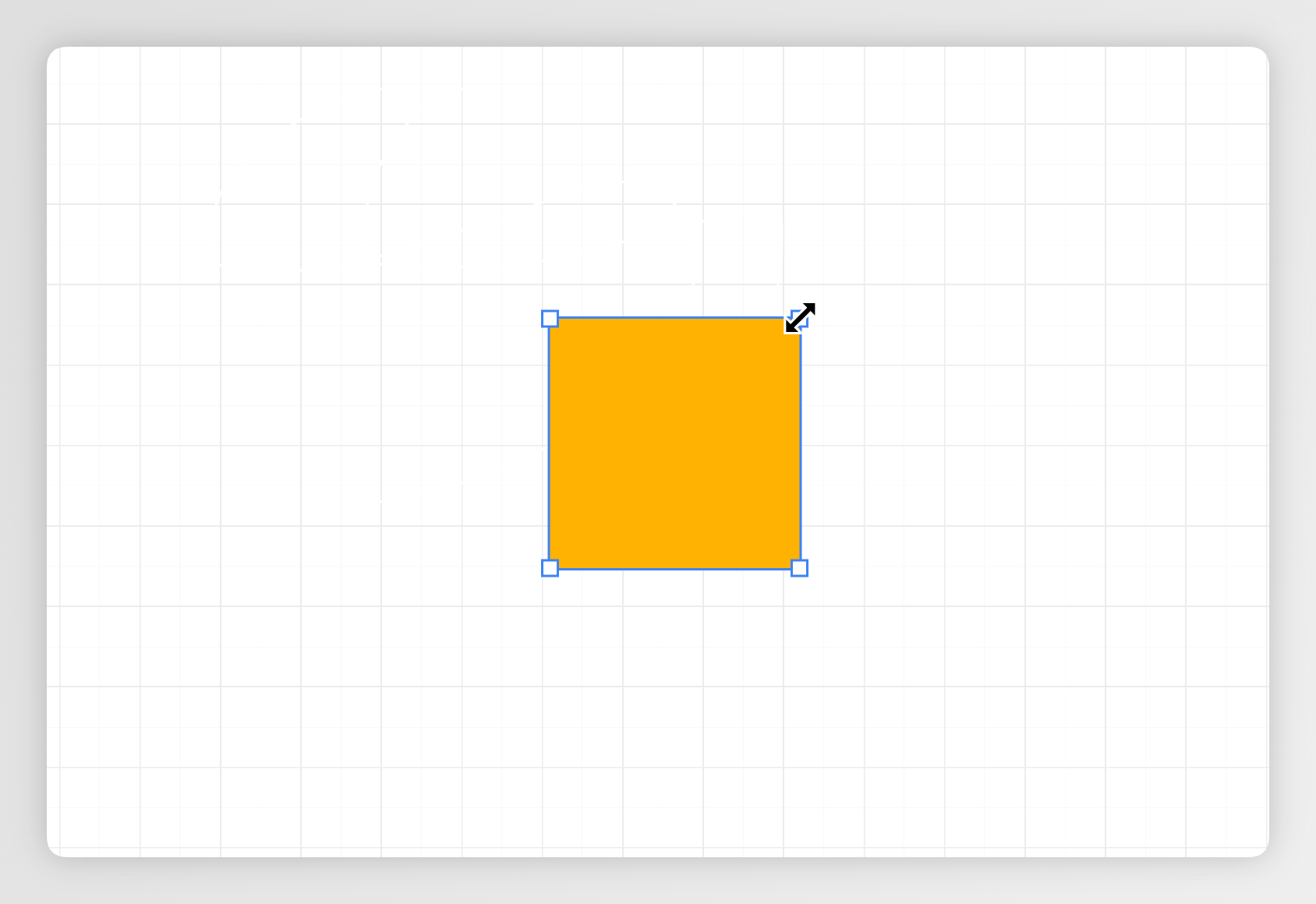
You can select any element on the canvas by clicking on it. When an element is selected, a blue outline and resize handles will appear around the element. Using these handles, you can resize the element by dragging them.
There are a few ways to resize an element depending on the element type:
Most Elements
- Dragging the resize handles will resize the element freely.
- Holding the
Shiftkey while dragging the resize handles will resize the element without changing its aspect ratio. - Holding the
Altkey while dragging the resize handles will resize the element from the center.
Text and Image Elements
- Dragging the resize handles will resize the element while keeping its aspect ratio.
- Holding the
Ctrlkey while dragging the resize handles will resize the element without changing its aspect ratio. - Holding the
Altkey while dragging the resize handles will resize the element from the center.
Deleting
You can delete any element on the canvas by pressing backspace on your keyboard.